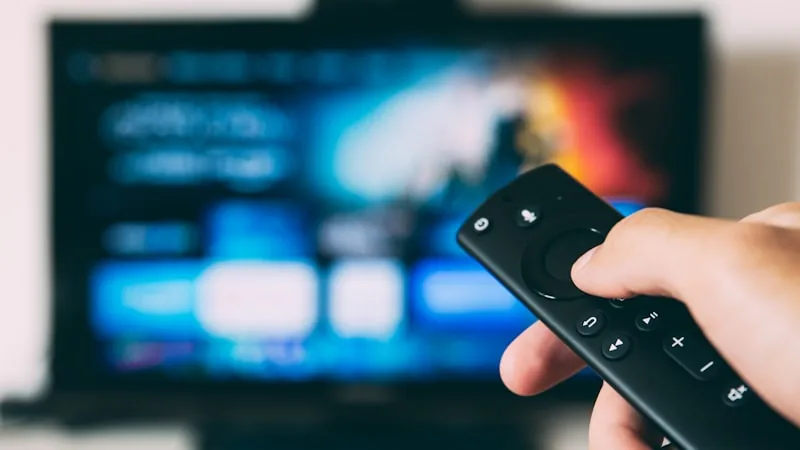
The Amazon Firestick is one of the most popular ways to watch IPTV, mainly because it's inexpensive, plugs directly into any TV's HDMI port, and takes only a few minutes to set up. Here's exactly how to get your HorizonStream subscription running on it.
Before You Start
Make sure you have three things ready: your Firestick connected to Wi-Fi and updated to the latest software, your HorizonStream login credentials (sent after you subscribe or start a free trial), and the name of the player app we recommend for Firestick — we'll send this to you directly over WhatsApp during setup, since the best app can change from time to time.
Step 1: Enable Apps From Unknown Sources
Because IPTV player apps aren't distributed through the Amazon Appstore, you'll need to allow installs from outside sources first. On your Firestick, go to Settings → My Fire TV → Developer Options, and turn on Apps from Unknown Sources. This is a standard, one-time setting used for thousands of legitimate third-party apps, not just IPTV.
Step 2: Install a File Manager or Downloader App
From the Fire TV home screen, search the Amazon Appstore for "Downloader" and install it. This free app lets you download and install the player app directly from a web link, since it isn't listed in the Appstore itself.
Step 3: Download and Install the Player App
Open Downloader, enter the app link we provide you, and let it download. Once it finishes, select Install, then Open. You'll be asked for a small storage permission the first time — allow it so the app can save channel data locally for smoother playback.
Step 4: Enter Your Subscription Details
Open the player app and enter the login details we sent you — usually a username and password, or a personal M3U playlist link, depending on which app you're using. Within a few seconds, your full channel list and on-demand library should load automatically.
Step 5: Set Up Your Favorites and EPG
Most player apps let you star or favorite specific channels so they're easier to find later, and display an electronic program guide (EPG) so you can browse what's currently airing. Take a minute to set this up now — it makes day-to-day use much smoother.
Troubleshooting Common Firestick Issues
If channels don't load right away, try closing and reopening the app first — this solves the majority of first-time setup issues. If the picture buffers frequently, check that your Firestick has a strong Wi-Fi signal; a Firestick sitting far from your router, or behind a TV mounted against a wall, often struggles more than other devices because its antenna is smaller. Where possible, moving your router closer or using a Wi-Fi extender makes a noticeable difference.
Need a Hand?
If anything doesn't go as expected, message our support team on WhatsApp — we can talk you through each step in real time, or send a screen-recorded walkthrough for your exact Firestick model. Setup usually takes less than five minutes with a bit of guidance.
Not subscribed yet? Check out our subscription plans, or read more in the FAQ about devices and installation.