Buffering is the single most common complaint with any streaming service, IPTV included — and in the vast majority of cases, it comes down to a handful of fixable causes rather than a problem with the channels themselves. Work through these checks roughly in order; most people find their answer in the first three.
1. Test Your Actual Internet Speed
Run a speed test on the same device (or same network) you're streaming on, ideally at the time you're noticing buffering. We recommend at least 10 Mbps for SD, 25 Mbps for HD, and 50 Mbps or higher for smooth 4K playback. If your speed is well below what your channel's quality requires, either upgrade your plan with your internet provider or switch to a lower stream quality inside the player app.
2. Switch to a Wired Connection
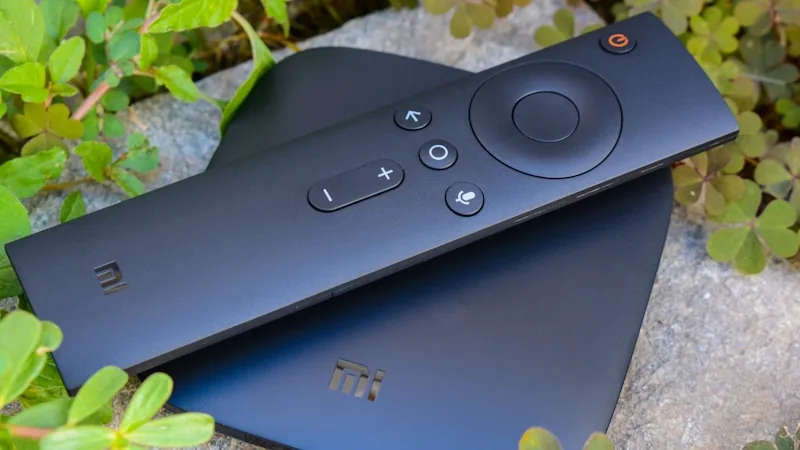
Wi-Fi is convenient but inherently less stable than a wired connection, especially with walls, distance, or interference from other devices in between. If your streaming device supports ethernet — directly or through a USB adapter — a wired connection is the single biggest reliability improvement you can make, particularly for 4K content.
3. Restart the App and the Device
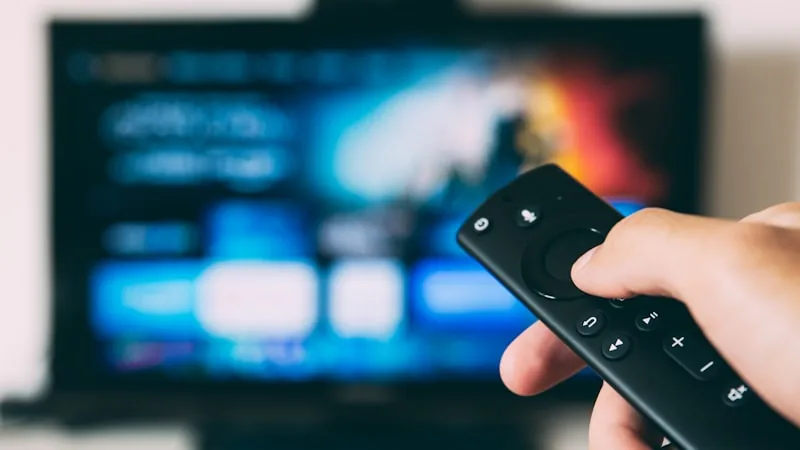
This sounds almost too simple, but a huge share of buffering issues clear up after fully closing the player app (not just backgrounding it) and reopening it. If that doesn't help, restart the device itself. Streaming devices with limited memory, like older Firesticks, can accumulate background processes over time that quietly slow everything down.
4. Check for Wi-Fi Congestion
If multiple devices in your home are streaming, gaming, or downloading large files at the same time, they're all competing for the same bandwidth. Try pausing other heavy internet use temporarily and see if playback improves — if it does, you've found your bottleneck.
5. Move Closer to Your Router (or Move Your Router)
Signal strength drops significantly with distance and walls. If your streaming device is far from your router, either relocate one of them, or add a Wi-Fi extender or mesh node closer to your TV. This is especially common with devices like Firesticks, which have small internal antennas.
6. Lower the Stream Quality Manually
Most player apps let you manually select a lower resolution (HD or SD instead of 4K) if automatic quality switching isn't kicking in fast enough. This trades a bit of picture sharpness for a much more stable, buffer-free stream — often worth it during peak internet usage hours in your area.
7. Message Support to Rule Out Server-Side Issues
If you've worked through the steps above and a specific channel is still buffering while everything else streams fine, it's worth messaging our support team. Occasionally a specific channel source needs to be refreshed on our end, and we can check the connection to our servers directly and confirm whether it's a local or server-side issue.
The Bottom Line
Buffering almost always traces back to bandwidth, Wi-Fi stability, or a device that needs a restart — genuine server outages are rare and usually resolved quickly. Working through this checklist should get you back to smooth streaming in a few minutes.
Still stuck? Message us on WhatsApp and we'll help you troubleshoot directly, or check more answers in the FAQ.